
Looking for a working GTA 5 Benny’s merge glitch 2026? You are in the right place. This step-by-step guide covers the fastest and most reliable method to put F1 wheels on any car in GTA Online — including vehicles that normally cannot equip them. Furthermore, this method works across PlayStation, Xbox, and PC, making it one of the most versatile cosmetic glitches available right now.
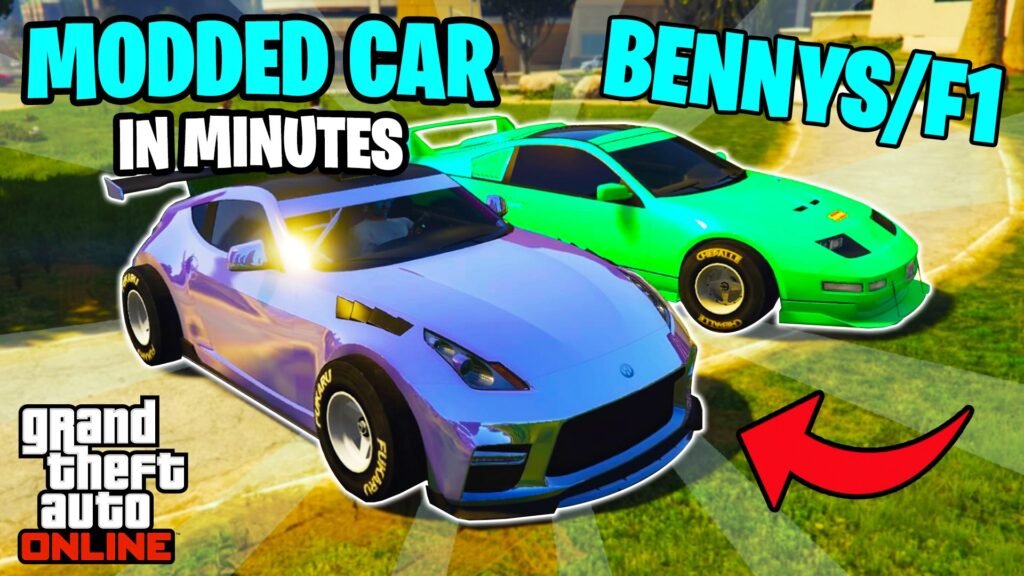
Last Updated: 2026 | Platform: PlayStation, Xbox, PC | Mode: GTA Online | Method: Car to Car Merge Glitch 1.71
Read through every section before starting. Additionally, follow each step in the exact order shown, because skipping any part of the setup will cause the merge to fail entirely.
Table of Contents
- What Is the Benny’s Merge Glitch?
- What You Need Before Starting
- Full Requirements List
- Step-by-Step Benny’s Merge Method
- How to Save the Merged Vehicle
- How to Repeat the Glitch
- Supported Platforms
- Important Warnings and Risks
- Pro Tips for Best Results
- FAQ
- Conclusion
What Is the GTA 5 Benny’s Merge Glitch 1.71?
The Benny’s merge glitch is a car-to-car cosmetic exploit in GTA Online that transfers F1 wheels, Benny’s upgrades, or Yankton plates from a donor vehicle onto any other compatible car in your garage. As a result, you can run F1 wheels on vehicles that Rockstar never intended to support them — giving your cars a completely unique look that stands out in any lobby.
Moreover, unlike money glitches that carry ban risks tied to sell limits, the Benny’s merge is a cosmetic method. However, it still requires a specific glitch state to work, so the setup process is slightly more involved than a standard garage modification. This guide breaks every step down in clear, beginner-friendly language so that anyone can follow along successfully.
⚠️ Note: GTA Online glitches can be patched in any Rockstar update. Always verify this method still works before investing time in the setup.
What You Need Before Starting
Before attempting the GTA 5 F1 wheels merge glitch, gather everything on this list. Although the setup takes a little time upfront, you only need to complete it once per session. Furthermore, after finishing the initial setup, you can repeat the merge on as many vehicles as you want without redoing the early steps.
Here is what this method relies on:
- A friend to assist with the LS Car Meet steps — this is not a solo method
- A donor vehicle carrying F1 wheels, Benny’s upgrades, or Yankton plates
- A target vehicle — the car you want to receive the merged mods
- Access to the Arena for the initial glitch state setup
- Access to LS Car Meet for the merge interaction
- A Sparrow or CEO Buzzard for the Easy Way Out steps
If you do not yet have the GTA$ to own these assets, Senior Unlocks offers reliable GTA Online cash boosting rated 4.9 stars on Trustpilot — available for Xbox, PlayStation, and PC. Thousands of players trust them to fund their GTA Online accounts safely and quickly.
Full Requirements List
People Required
- One friend — They must be in the same session throughout the entire process
Properties and Locations
- The Arena — Used during the initial glitch state setup
- LS Car Meet — Where the actual merge interaction takes place
- CEO Office or Warehouse — Used to request your target vehicle mid-glitch
- LS Customs or MOC — Required to save the merge before switching sessions
Vehicles Required
- Donor Vehicle — Any vehicle with F1 wheels, a Benny’s upgrade, or Yankton plates. This is the car whose mods transfer onto your target vehicle
- Target Vehicle — The car you want to receive the F1 wheels or Benny’s mods. Note that this vehicle must support LS Customs modifications or MOC storage — weaponized vehicles that cannot enter LS Customs will not work with this method
- Sparrow or CEO Buzzard — Essential for the Easy Way Out steps during the merge sequence
Session Settings
Before starting, configure these settings correctly:
- Set Matchmaking to Closed
- Enable Main Host After Next Job in your settings
- Set Map Options to Show so all jobs appear on the map
In-Game Money to Start
If you need GTA$ to purchase the required vehicles or access the Arena, Senior Unlocks provides fast and safe cash boosting rated 4.9 stars on Trustpilot:
- 💰 Xbox GTA Cash Boosting: View Service
- 💰 PlayStation GTA Cash Boosting: View Service
- 💰 PC GTA Cash Boosting: View Service
Senior Unlocks carries thousands of verified reviews on Trustpilot and consistently delivers fast, reliable results for GTA Online players across all platforms.
Step-by-Step Benny’s Merge Glitch 1.71 — Full Method
Follow every step below in exact order. Additionally, note that the platform you play on affects which Anoka (session lobby) you need to join at certain steps. Specifically, PlayStation 5 players join Anoka 1P5 and Anoka 10P5, while PlayStation 4 and other platforms use different Anoka numbers. If you are unsure which Anoka applies to your platform, ask in the comments and the community will help clarify.
Phase 1: Getting Into the Glitch State
Step 1: Set Up Your Session Settings
First, make sure you and your friend are in the same session together. Next, open your settings and confirm that Matchmaking is set to Closed and Main Host After Next Job is enabled. Additionally, set your Map Options to Show so all available jobs appear on the in-game map. These settings are essential — without them, the glitch state will not trigger correctly.
Step 2: Head to the Arena and Join the Correct Anoka
Make your way over to the Arena. Once there, hover over the Map Flip option located directly above the Arena on your map. Then join Anoka 1P5 (or the equivalent for your platform). Accept the first alert that appears on screen and then wait for the second alert to load.
As soon as the second alert appears, press Square on PlayStation or X on Xbox immediately. A prompt appears asking: “Do you want to join this job?” Accept this alert, then accept the following alert after it. Once you load back into the session, check the bottom-left corner of your screen — your minimap should be completely gone. This confirms you have successfully entered the glitch state.
If the minimap is still visible, repeat this step until it disappears. The missing minimap is the only reliable confirmation that the glitch state is active.
Step 3: Purchase a Spectator Event at the Ticket Booth
Walk up to the Ticket Booth at the Arena. Press Right on the D-Pad and purchase a Spectator Event. After purchasing, join Anoka 10P5 (or the equivalent full-session Anoka for your platform). The key here is joining the Anoka that triggers a “Job Session is Full” alert — not the bad sport alert. Accept that alert once it appears and you will spawn back into the session fully glitched out.
Phase 2: The Merge at LS Car Meet
Step 4: Accept the LS Car Meet Invite
Once your glitch state is confirmed active, accept a LS Car Meet invite from your friend. Wait for the LS Car Meet to load fully before proceeding.
Step 5: Request Your Donor Vehicle
Inside the LS Car Meet, request your donor vehicle — this is the car carrying the F1 wheels, Benny’s upgrades, or Yankton plates you want to transfer. Wait for it to arrive and then get inside it.
Step 6: Swap Vehicles with Your Friend
After the donor vehicle arrives, get out and get inside your friend’s vehicle. Simultaneously, your friend gets inside your donor vehicle. This vehicle swap is a critical part of the merge interaction — both players must be in each other’s cars at the same time.
Step 7: Start a Sprint and Use the Return to Storage Trick
Either you or your friend starts a Sprint at the LS Car Meet. At the 2-second mark of the countdown, your friend presses Return Personal Vehicle to Storage. This kicks you out of the car just before the sprint launches. As a result, you carry the glitch state forward into the next sequence without the sprint actually completing normally.
Phase 3: Completing the Merge
Step 8: Join Anoka 1P5 Again
Immediately after getting kicked out of the car, join Anoka 1P5 again. Accept the first alert and decline the second one this time. Once you load into the sprint, your vehicle moves freely — this confirms the sequence is working correctly.
Step 9: Call a Sparrow or CEO Buzzard
Next, call up either a Sparrow or CEO Buzzard from your interaction menu. Once it arrives, get inside and fly up into the air. Then jump out of the aircraft and select Easy Way Out. After respawning, you will appear back inside your vehicle.
Step 10: Join Anoka 10P5 and Request a Luxury Helicopter
After spawning back into your vehicle, join Anoka 10P5 and accept the alert that appears. Then open your CEO Abilities and request a Luxury Helicopter. Board the helicopter and fly to either your CEO Office or your Warehouse — whichever location holds the target vehicle you want to receive the merged mods.
Important: Confirm that your target vehicle supports LS Customs modifications. Weaponized vehicles that cannot enter LS Customs will not accept the merge. However, vehicles stored in the back of your MOC also work as an alternative.
Step 11: Request Your Target Vehicle
Once inside your CEO Office or Warehouse, walk forward and press Right on the D-Pad to request your personal vehicle. This is the car that will receive the F1 wheels or Benny’s mods. When it spawns outside, check it — the mods will not appear on it yet. This is expected behavior at this stage.
Step 12: Take the Easy Way Out Again
Return to your interaction menu, call up your Sparrow or Buzzard again, and fly into the air. Jump out and take the Easy Way Out a second time. After spawning back in, check your target vehicle — the F1 wheels, Benny’s upgrade, or Yankton plates now appear on it. The merge is complete.
How to Save the Merged Vehicle
Saving the merge immediately is the most critical step in the entire process. If you switch sessions, blow up the vehicle, or enter any other building before saving, the mods revert to their original state and the merge is lost.
To save the merge, do one of the following immediately after the mods appear:
- Drive the vehicle to LS Customs and change at least one modification on it — even a single paint color change locks the merge in permanently
- Call your MOC and store the vehicle in the back of it
Complete one of these two actions before doing anything else. Once saved, the F1 wheels or Benny’s mods remain on the vehicle permanently, even after switching sessions.
How to Repeat the Glitch
One of the biggest advantages of this method is that the setup only needs completing once per session. After saving your first merged vehicle, you can repeat the process from the LS Car Meet step as many times as you want without redoing the Arena setup.
Simply ask your friend to send another LS Car Meet invite and repeat from Step 4 onward. As a result, you can merge mods onto as many vehicles as you need in a single session. However, if you find a new session, you will need to redo the full Arena glitch state setup from the beginning.
Supported Platforms
The GTA 5 Benny’s merge glitch 1.71 works across all major GTA Online platforms in 2026:
| Platform | Status | Anoka for Step 2 | Anoka for Step 3 |
|---|---|---|---|
| PlayStation 5 | ✅ Working | Anoka 1P5 | Anoka 10P5 |
| PlayStation 4 | ✅ Working | Check comments | ~Anoka 7 |
| Xbox Series X|S | ✅ Working | Platform equivalent | Platform equivalent |
| Xbox One | ✅ Working | Platform equivalent | Platform equivalent |
| PC | ✅ Working | Platform equivalent | Platform equivalent |
The Anoka numbers vary by platform. If you are unsure which ones apply to your setup, ask in the community — other players on your platform will be able to confirm the correct values.
Need a Pre-Modded Account or Starting Cash?
If you want to skip grinding for the vehicles and assets required for this method, Senior Unlocks offers pre-modded GTA accounts and cash boosting services trusted by thousands of GTA Online players. They are rated 4.9 stars on Trustpilot — one of the highest ratings in the GTA Online services space.
- 🎮 Xbox Pre-Modded GTA Accounts: Shop Here
- 🎮 PlayStation Pre-Modded GTA Accounts: Shop Here
- 🖥️ PC Rockstar Pre-Modded GTA Accounts: Shop Here
These accounts arrive fully loaded with cash, unlocks, and high-level progression. Furthermore, their Trustpilot rating reflects consistent delivery and genuine customer satisfaction — making Senior Unlocks the most reliable choice for GTA Online players in 2026.
Important Warnings and Risks
Understanding these risks helps you approach the GTA 5 F1 wheels glitch safely and with realistic expectations.
🔧 Patch Risk
Rockstar patches cosmetic glitches alongside gameplay updates. Although this method works as of 2026, a future title update could remove it without warning. Therefore, always check GTAForums or Reddit’s r/gta5 before starting a session to confirm current working status.
💾 Merge Not Saving
If you switch sessions or enter another building before saving at LS Customs or the MOC, the merged mods disappear permanently. Consequently, always save the vehicle immediately after the mods appear — never delay this step.
🚫 Incompatible Vehicles
Weaponized vehicles that cannot enter LS Customs will not accept the merge. Additionally, some heavily restricted vehicles may behave unexpectedly. If a merge fails on a specific target vehicle, try a different car that supports standard LS Customs modifications.
👥 Friend Required
Unlike solo money methods, this glitch requires a second player throughout the process. Moreover, both players need to execute specific actions simultaneously during the Sprint step. Communicate clearly with your friend before starting to avoid timing mistakes.
⚠️ Session Stability
Losing connection or being kicked from the session mid-glitch resets your glitch state entirely. As a result, you will need to redo the full Arena setup before attempting the merge again.
Pro Tips for Best Results
Once you complete the setup and feel comfortable with each phase, apply these tips to get the most out of every session:
- Use an Invite-Only Session to eliminate griefing and session interruptions during the Arena setup phase
- Communicate clearly with your friend before each timed step — especially the Sprint Return to Storage trick at the 2-second mark
- Queue up multiple target vehicles in advance so you can merge one after another without delay once the glitch state is active
- Always save at LS Customs immediately after each successful merge — never skip this step, even if you plan to do another merge right after
- Keep your Sparrow or Buzzard close throughout the session — you need it multiple times and calling it fresh each time adds unnecessary delay
- Need a donor vehicle with F1 wheels already installed? A pre-modded account from Senior Unlocks — rated 4.9 stars on Trustpilot — comes with everything you need already set up and ready to use
- Screenshot or record your vehicle after a successful merge as proof — this also helps you troubleshoot if the mods unexpectedly revert
FAQ
What is the Benny’s merge glitch in GTA 5 Online?
The Benny’s merge glitch transfers F1 wheels, Benny’s upgrades, or Yankton plates from a donor vehicle onto any compatible target vehicle in GTA Online. As a result, you can apply exclusive cosmetic upgrades to cars that normally cannot equip them through standard in-game methods.
Does the GTA 5 F1 wheels merge glitch work in 2026?
Yes — as of the time this guide was written, the method works in 2026 on all platforms. However, Rockstar patches glitches regularly, so always verify current status on community forums before starting.
Do I need a friend to do the Benny’s merge glitch?
Yes. This method requires a second player throughout the process, particularly during the LS Car Meet vehicle swap and Sprint steps. Unfortunately, there is currently no known solo version of this specific merge method.
Which vehicles work as donor vehicles?
Any vehicle that carries F1 wheels, a full Benny’s upgrade, or Yankton plates works as a donor. Furthermore, the more exclusive and visually distinct the donor vehicle’s mods, the more impressive the final result on your target car.
Which vehicles can receive the merge?
Any vehicle that supports LS Customs modifications or MOC storage can receive the merge. However, weaponized vehicles that cannot enter LS Customs will not work as target vehicles for this method.
What happens if my minimap does not disappear in Step 2?
Keep repeating the Arena Anoka steps until the minimap disappears. The missing minimap is the only reliable confirmation that the glitch state is active. Do not proceed to Phase 2 until this is confirmed.
How do I save the merged vehicle permanently?
Drive it to LS Customs immediately and change any single modification — even a paint color swap locks the merge in. Alternatively, store it in your MOC. Either option saves the merge permanently before you switch sessions.
Can I merge onto multiple vehicles in one session?
Yes. After completing the initial Arena setup once, you can repeat the merge from the LS Car Meet step as many times as you want in the same session. This makes batch merging multiple vehicles in a single sitting very efficient.
Where can I get a pre-modded GTA account with F1 vehicles already set up?
Senior Unlocks offers pre-modded accounts for all platforms rated 4.9 stars on Trustpilot. Their accounts come fully loaded with cash, high-end vehicles, and progression — so you can start merging immediately without grinding for assets first.
Final Conclusion
The GTA 5 Benny’s merge glitch 1.71 remains one of the most exciting cosmetic methods in GTA Online in 2026. With the right setup — a friend, a donor vehicle with F1 wheels or Benny’s mods, and a compatible target car — you can transfer exclusive upgrades onto virtually any vehicle in your garage. Furthermore, once the Arena glitch state is active, repeating the merge on multiple cars takes only a few minutes per vehicle.
The key to success with this method is preparation and communication. Set your session settings correctly before starting, communicate clearly with your friend during the timed steps, and always save at LS Customs immediately after each successful merge. Follow those three rules consistently and this glitch will serve you well throughout 2026.
Finally, if you want to skip building up your GTA Online account from scratch, Senior Unlocks delivers pre-modded accounts and cash boosting for all platforms — rated an outstanding 4.9 stars on Trustpilot by thousands of satisfied GTA Online players. Whether you need a donor vehicle already loaded with F1 wheels or a fully stacked account ready for immediate use, Senior Unlocks is the most trusted option available in 2026.
- 🎮 Xbox Pre-Modded Accounts: Shop Here
- 🎮 PlayStation Pre-Modded Accounts: Shop Here
- 🖥️ PC Pre-Modded Accounts: Shop Here
- 💰 Xbox Cash Boosting: Shop Here
- 💰 PlayStation Cash Boosting: Shop Here
- 💰 PC Cash Boosting: Shop Here
Good luck, and enjoy your newly merged vehicles.
This article serves as a third-party informational guide for GTA Online players. All glitches and exploits are subject to change via Rockstar Games updates. Use at your own risk.